mBot ultrasonic sensor (1/4): measure a distance
mBot ultrasonic sensor, part 1: how the echo measures distance, a Live-mode reading in centimeters, and a reliable variable for the later projects.

mBot ultrasonic sensor, part 1: how the echo measures distance, a Live-mode reading in centimeters, and a reliable variable for the later projects.
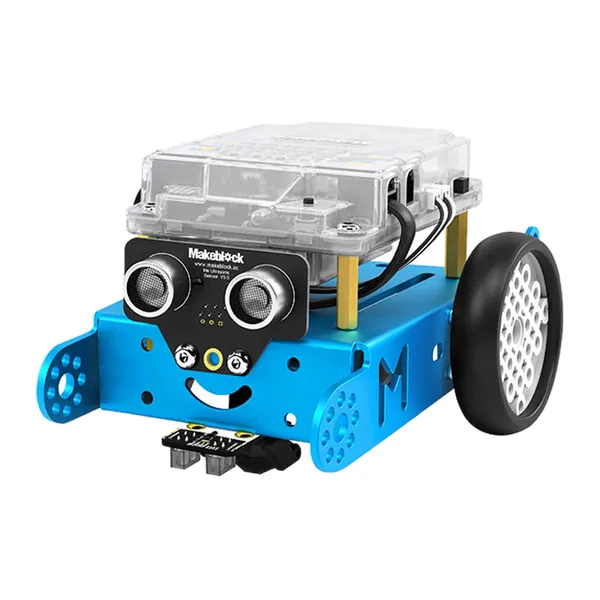
This series is part of the coding for kids track and the guide My first mBot robot.
An ultrasonic sensor “sees” a distance in 3 steps:
mBot (sensor)                                   Obstacle (wall, box…)
   [sends]  ─────────────── ultrasound ──────────────►
[receives] ◄──────────── echo ─────────────────────If the wave takes t seconds for the round trip, then:
distance ≈ (speed of sound × t) / 2
t is the trip out plus the trip back (the wave travels the distance you want to measure twice).Classroom tip: move a sheet of A4 paper in front of the sensor. If the distance changes cleanly, the “sensor → variable” chain is OK.
Create a variable named, for example:
distance_cmAnd show it on the stage (the variable’s checkbox).

The idea: continuously, you set distance_cm to the value returned by the sensor.
Pseudo-logic:
when green flag clicked (or in Live mode)
  forever
    set distance_cm to (ultrasonic sensor distance in cm)
wait 0.1 swait (for example 0.2 s), and test with a flat obstacle.Exact names vary a little with your mBlock version, but the minimum solution uses:
when green flag clicked (or an equivalent Live trigger)foreverset [distance_cm] to (...)ultrasonic sensor distance in cmwait (0.1) secondsIn the next activity, you turn distance_cm into a parking radar: the closer you are, the faster the robot “beeps.”
Why USB rather than Bluetooth at the start?
USB (a cable) avoids radio problems while you learn to read the sensor. See mBlock Bluetooth troubleshooting after that.
Which unit does mBlock use?
Usually centimeters (cm) on the mBot ultrasonic block.
The reading jumps: what should I do?
Test a flat obstacle, keep hands away from the sensor, and increase the wait in the loop.
Torn between two models or stuck on a build? Drop us a line and we will get back to you by email.