mBot activity: scroll text on the LED matrix
Scroll a message on the mBot LED matrix: X position, loops, length×5+15 rule. Program diagrams included.

Scroll a message on the mBot LED matrix: X position, loops, length×5+15 rule. Program diagrams included.

AI-generated illustration
Some links on this page are affiliate links. If you buy through them, we may earn a commission at no extra cost to you.
On the mBot, the LED matrix (often 5 columns × 8 rows) can show letters and symbols. To create the illusion of a scrolling banner, you do not “rotate pixels” by hand: you display the same text several times per second, but each time you change its horizontal position (often called X in mBlock).
By the end of this activity, you will have a reusable pattern to show any message, several times, in other projects.
Exact block names can vary with the language and version of mBlock; the idea (variable X, loop, delay) stays the same.
Imagine the text as a ribbon wider than the screen. The matrix only shows a window of a few columns. By sliding the ribbon to the left (or shifting the display position), you make the letters scroll.
     matrix (5 visible columns)
          ┌─────┐
ribbon … H e l l o  w o r l d …  →  we slide the ribbon
          └─────┘
To see what happens “for real”, here is a photo/capture on the robot with a simple display:
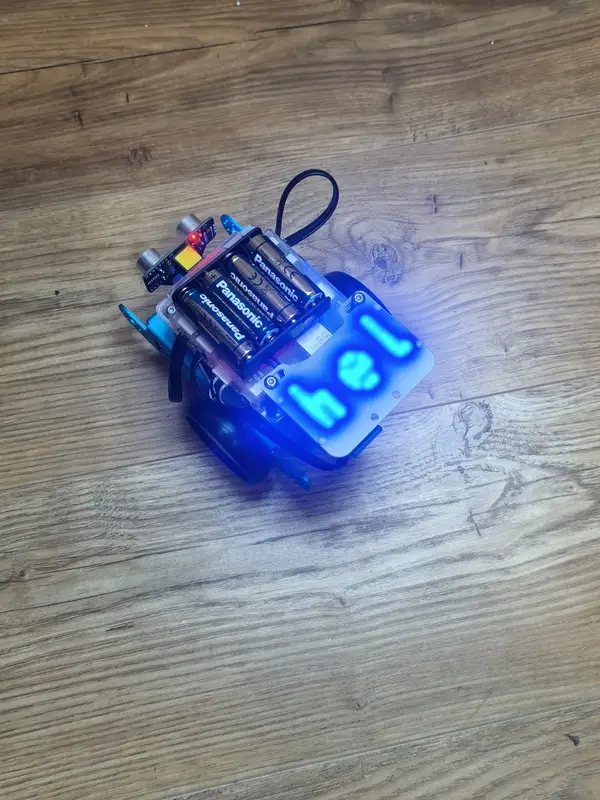
And the matching program capture (activity 2.1):
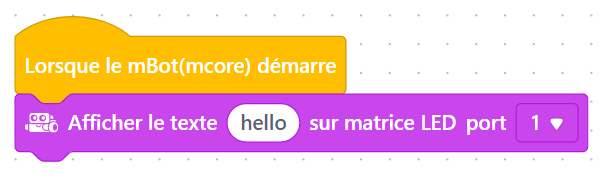
mBlock program: afficher_1_mot.mblock (“show one word”).
XIn mBlock, a block like “show text at position X” (wording may vary) places the start of the text at an abscissa X on the matrix.
If you want the link with “text” programming in Arduino C, X is a classic variable: you give it a type (often int) and change its value across loops. See: Arduino C — types and variables.
Large X: the text starts on the right; part of it can be off-screen (invisible).
X decreases: the text shifts to the left → scrolling effect.
Logical diagram of one frame on screen:
position X (schematic)
  small X     →  start of the word visible on the left
  medium X    →  word centred or partly visible
  large X     →  word pushed right / out of view
Takeaway: to scroll, you must vary X (often by decreasing it step by step in a loop).
Goal: show “Hello” to see how the matrix reacts.
Minimal logical structure:
┌─────────────────────────────┐
│  When mBot starts           │
│    show text "Hello"        │
│    (at a fixed X)           │
└─────────────────────────────┘
After upload, you often see that only the first letters appear (the rest leave the visible area). That is normal: the matrix is narrow.
X (e.g. toward 10 or 15), you can hide the start of the word or make it enter from the right.Here is the same word with a different X offset (example X = 10):
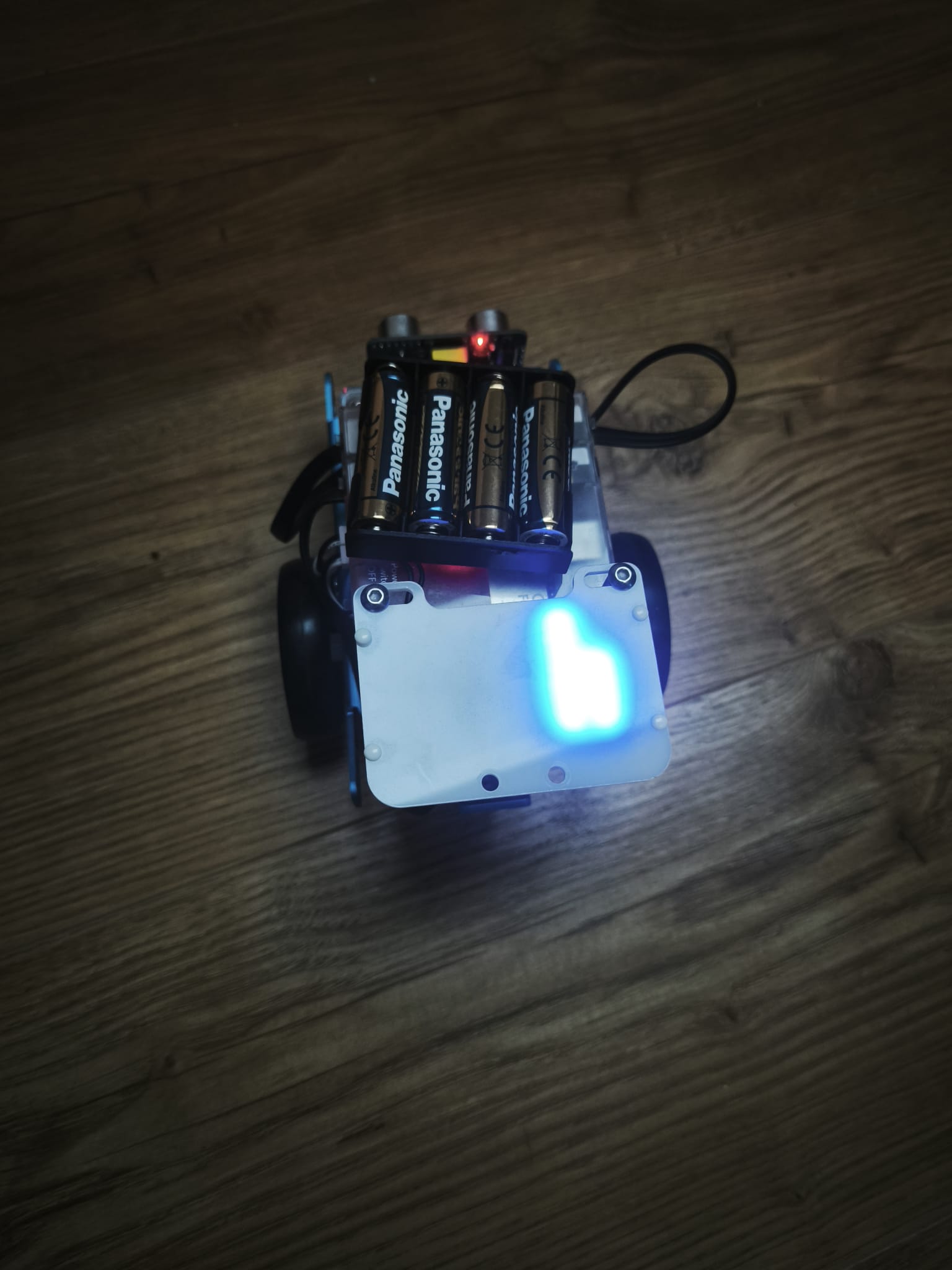
Program capture (activity 2.2):
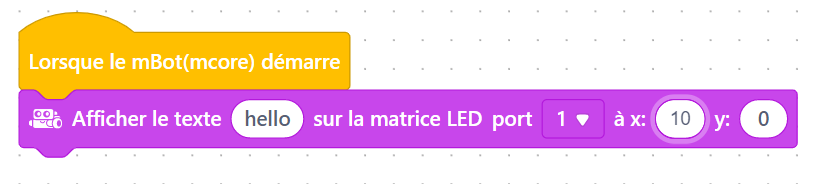
mBlock program: afficher_1_mot_x_vaut_10.mblock (“show one word, X = 10”).
Idea to keep: a static display proves the link between X and what the eye sees. Scrolling will be the same operation, repeated with X changing.
XGoal: repeat: show the text at the current position, decrease X, wait a bit — to create motion.
X.X = 15 (a typical value to start off-screen on the right and let the message enter). Adjust for your text.Logical structure:
┌──────────────────────────────────────────┐
│  On start                                 │
│    X ← 15                                 │
│    ┌────────────────────────────────────┐ │
│    │  Repeat forever *                   │ │
│    │    show text at position X         │ │
│    │    X ← X − 1                        │ │
│    │    wait 0.1 s                       │ │
│    └────────────────────────────────────┘ │
└──────────────────────────────────────────┘

* Or “forever” depending on available blocks
Detailed flow (one iteration):
   ┌──────────────┐
   │  Show        │
   │  text at X   │
   └──────┬───────┘
          │
          ▼
   ┌──────────────┐
   │  X ← X − 1   │
   └──────┬───────┘
          │
          ▼
   ┌──────────────┐
   │  Wait        │
   │  0.1 s       │
   └──────┬───────┘
          │
          └──────► (back to start of the loop)
The delay (often 0.1 s) is essential: without it, scrolling would be too fast to read.
Local capture (section 4):
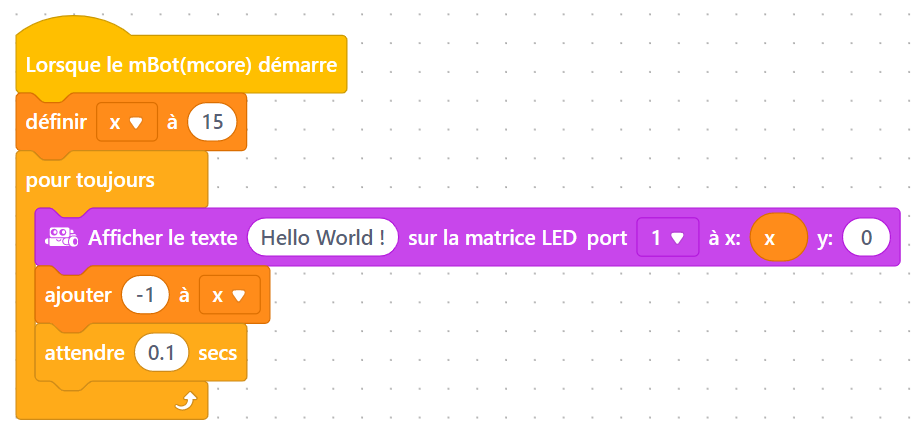
mBlock program: boucle.mblock (“loop”).
→ Hence the third step: bound the inner loop and wrap it in a loop of repetitions.
Goal: scroll the same message several times, with a clear end for each pass.
Logical structure overview:
┌─────────────────────────────────────────────────────┐
│  On start                                            │
│    ┌──────────────────────────────────────────────┐ │
│    │  For each display of the message (e.g. 3×)      │ │  ← OUTER loop
│    │    X ← 15                                      │ │
│    │    ┌────────────────────────────────────────┐ │ │
│    │    │  For a fixed number of steps              │ │ │  ← INNER loop
│    │    │    show text at X                         │ │ │
│    │    │    X ← X − 1                              │ │ │
│    │    │    wait 0.1 s                             │ │ │
│    │    └────────────────────────────────────────┘ │ │
│    └──────────────────────────────────────────────┘ │
└─────────────────────────────────────────────────────┘
Nested diagram (“boxes” view):
 +-- repeat N times (whole message) ----------------+
 |                                                   |
 |   X ← 15                                          |
 |   +-- repeat (length × 5 + 15) times -----------+  |
 |   |      show ; X←X-1 ; wait                    |  |
 |   +---------------------------------------------+  |
+---------------------------------------------------+So that the hand-off between two passes is neither too long nor too short, a common rule is:
number_of_steps = text_length * 5 + 15Example: for the message Hello (5 characters), you get 5 * 5 + 15 = 40 steps in the inner loop. That gives the text time to enter from the right, scroll across, and leave the screen completely on the left before the next pass.
text_length: number of characters in the message (at first, without counting accents if your display ignores them — see section 7).+ 15: margin to exit the text fully on the left after bringing it in from the right (the same margin you already used with the initial X).You can store text_length in a variable to keep the program readable.
Local capture (step 5.2):
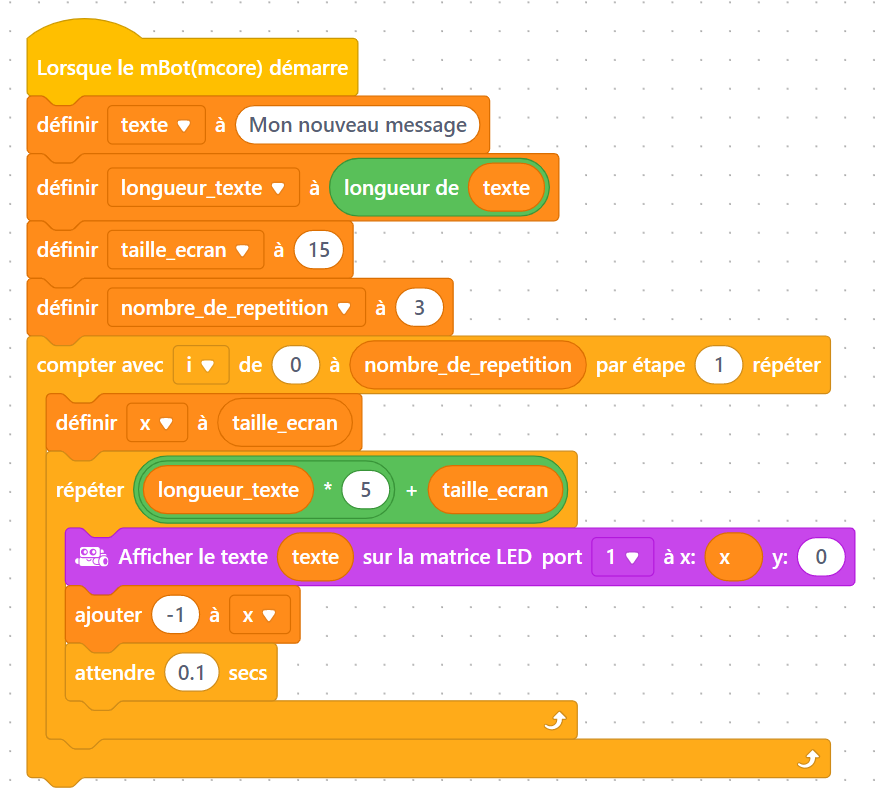
mBlock program: defiler52.mblock (“scroll 5.2”).
In this example, I deliberately did not write the display text twice (once to compute the length, then once to show it).
That programming habit is called DRY (Don’t Repeat Yourself):
Here the DRY idea is: one source for the message — a single variable such as banner_text — then reuse that variable:
text_length from banner_textbanner_text on the matrixKeep one string variable for both length and drawing; do not hard-code "Hello" in two separate blocks.
float but message as textBy default, code generated by mBlock often declares variables as float. That is fine for numbers (position X, counters, etc.), but not for a string like "My new message".
Fix: create a dedicated text variable in the blocks (for example banner_text), assign the message once, then use that variable for length and for drawStr / show-text. If you open the Code tab, cast or declare the message as a String, not float:
String banner_text = "My new message";
int text_length = banner_text.length();
If you do:
banner_text = "My new message";while banner_text is still declared as float, the upload can fail (capture below):
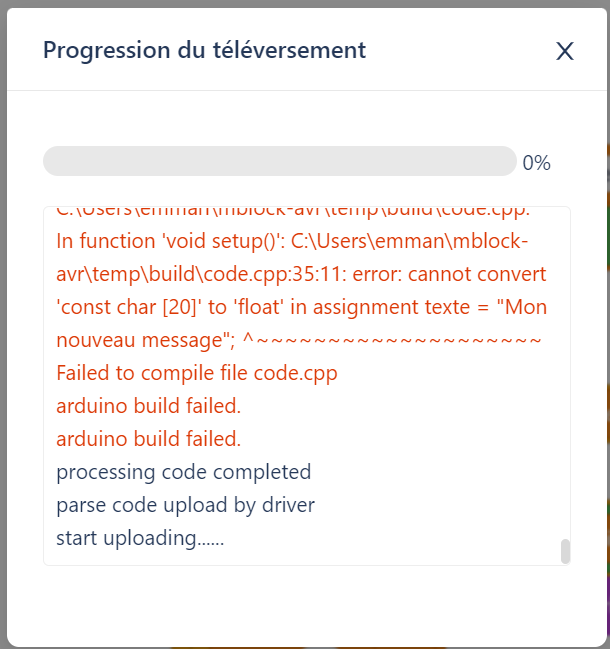
Example of code that causes the error. The variable names come from the mBlock project shown in the captures (texte = text, longueur_texte = text length, taille_ecran = screen size, nombre_de_repetition = number of repetitions); you can name yours as you like.
// generated by mBlock5 for mBot
// codes make you happy

#include <MeMCore.h>
#include <Arduino.h>
#include <Wire.h>
#include <SoftwareSerial.h>

MeLEDMatrix ledMtx_1(1);

float x = 0;
float texte = 0;  // BUG: should be String banner_text
float longueur_texte = 0;
float nombre_de_repetition = 0;
float i = 0;
float j = 0;
float taille_ecran = 0;

void _delay(float seconds) {
  long endTime = millis() + seconds * 1000;
  while(millis() < endTime) _loop();
}

void setup() {
  ledMtx_1.setColorIndex(1);
  ledMtx_1.setBrightness(6);
  texte = "My new message";  // fails while texte is float
  longueur_texte = String(texte).length();
  taille_ecran = 15;
  nombre_de_repetition = 3;
  for(int i=0;i<(int)ceil(nombre_de_repetition);i+=1){
    x = taille_ecran;
    for(int count=0;count<int((longueur_texte * 5 + taille_ecran));count++){

      ledMtx_1.drawStr(x, 0 + 7, String(texte).c_str());
      x += -1;
      _delay(0.1);
    }

  }

}

void _loop() {
}

void loop() {
  _loop();
}texteThe fix is to declare texte as a string.
</> → Arduino C preview (read-only).texte.Corrected version:
// generated by mBlock5 for mBot
// codes make you happy

#include <MeMCore.h>
#include <Arduino.h>
#include <Wire.h>
#include <SoftwareSerial.h>

MeLEDMatrix ledMtx_1(1);

float x = 0;
const char* texte = "";
float longueur_texte = 0;
float nombre_de_repetition = 0;
float i = 0;
float j = 0;
float taille_ecran = 0;

void _delay(float seconds) {
  long endTime = millis() + seconds * 1000;
  while(millis() < endTime) _loop();
}

void setup() {
  ledMtx_1.setColorIndex(1);
  ledMtx_1.setBrightness(6);
  texte = "My new message";
  longueur_texte = String(texte).length();
  taille_ecran = 15;
  nombre_de_repetition = 3;
  for(int i=0;i<(int)ceil(nombre_de_repetition);i+=1){
    x = taille_ecran;
    for(int count=0;count<int((longueur_texte * 5 + taille_ecran));count++){

      ledMtx_1.drawStr(x, 0 + 7, String(texte).c_str());
      x += -1;
      _delay(0.1);
    }

  }

}

void _loop() {
}

void loop() {
  _loop();
}
Note: on an mBot/mCore,
const char*is often “lighter” thanStringas a global. Here we useString(texte)only to get the length and to provide ac_str()for display.
Accented characters are often poorly supported or invisible depending on version / display mode. For a workshop:
HELLO, MBOT, SALUT;fixed display (understand X and truncation)
│
▼
one loop: X decreases → continuous scroll
│
▼
two loops: N clean passes + steps ≈ length×5+15
│
▼
you can scroll a message and repeat it cleanlyYou can now reuse this “scroll engine” in your projects (show a score, an instruction, a distance…), by copying the logic when you need it.
wait 0.05 vs 0.2) and observe readability.Torn between two models or stuck on a build? Drop us a line and we will get back to you by email.