Create an mBlock 5 account
Set the language, then create an mBlock account: profile menu, email, age, password and the confirmation email. The screenshots show the French interface.

Set the language, then create an mBlock account: profile menu, email, age, password and the confirmation email. The screenshots show the French interface.
AI-generated illustration
Install mBlock 5 on Windows first, then look at the interface. The pictures on this page are the French screens of mBlock 5. The labels you see follow the language you chose in the app.
An account is what Makeblock uses to store projects in their cloud, when that option is on the screen, and to open the same work on another computer. Without an account you can often keep working on the machine, and you keep the files only if you export them yourself.
mBlock often opens in English. Set the language before you follow the screens.
In the installed app, use the windows in the next sections. In a browser, the older community address was planet.mblock.cc. Check Makeblock if that address has moved.
On the right of the top bar, click the profile icon.
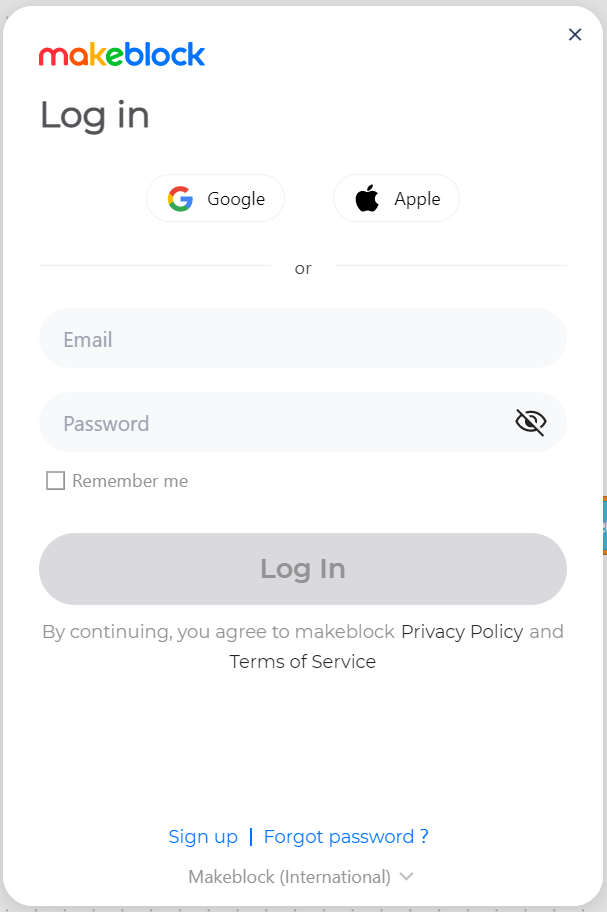
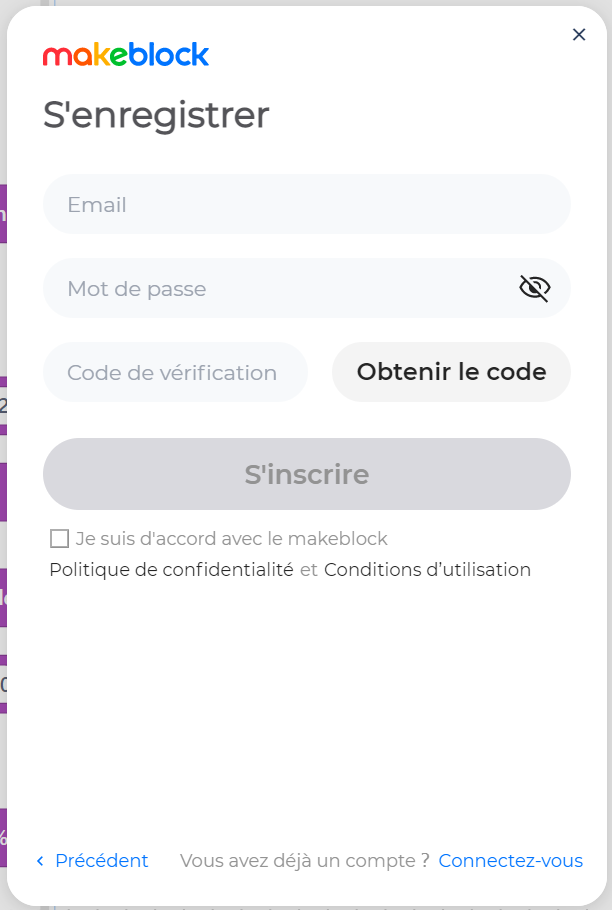
Type an inbox you actually read, then the button that continues (Suivant on the French screen).
Makeblock asks whether you are 16 or older. That step chooses the notices about children and parents.
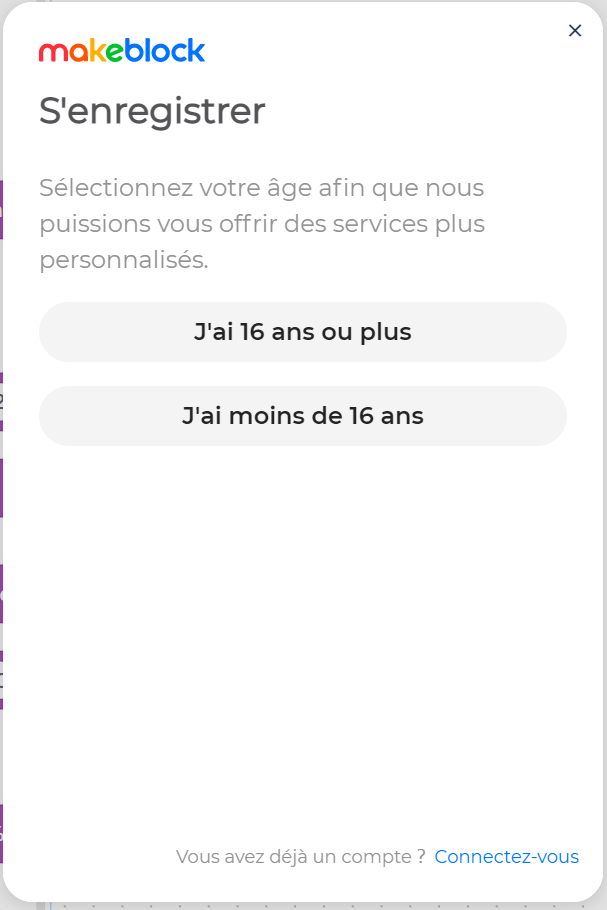
If the answer is no, further notices can appear.
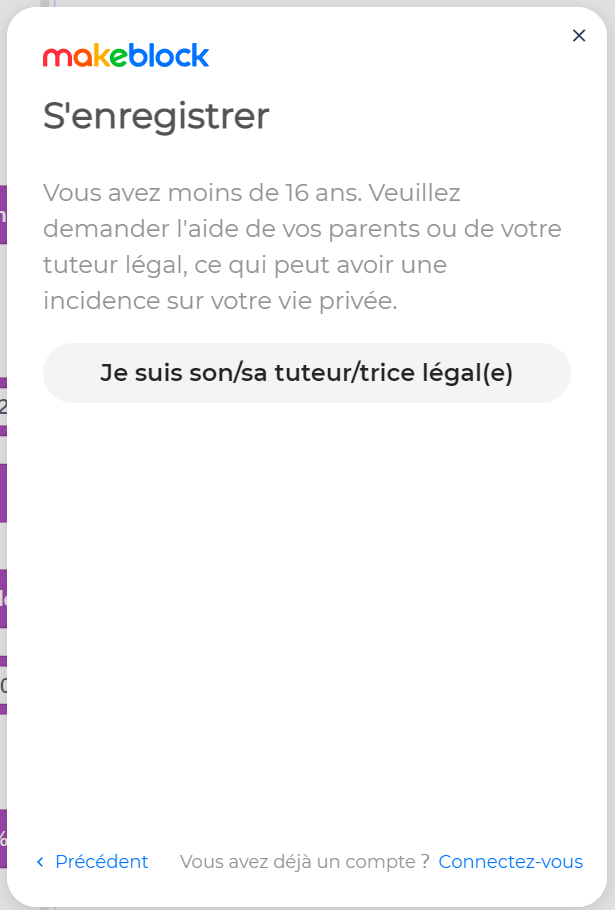
A parent or a teacher can create the account when the school or the family prefers that. Follow the text on the screen and the rules that apply where you live.
Choose a long password, then the button that creates the account.
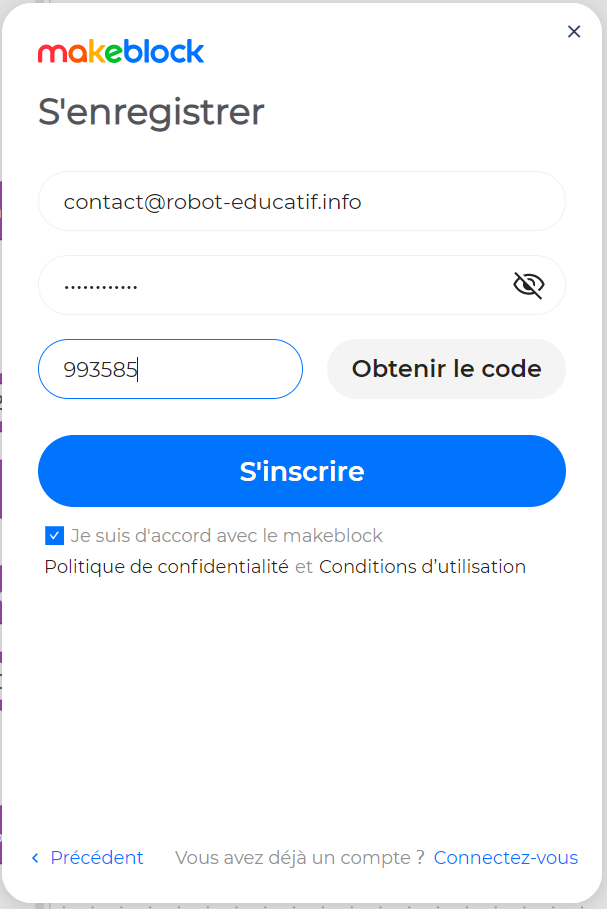
Open the message from Makeblock, including the spam folder. Until that link is used, some account features can stay limited.
| Step | Action |
|---|---|
| 1 | Set the language |
| 2 | Profile icon, top right |
| 3 | Email, then continue |
| 4 | Say whether you are 16 or older |
| 5 | Password, then create the account |
| 6 | Confirm the email |
Next: the first mBot program, or mBlock or Scratch. Wireless trouble is on Bluetooth troubleshooting.
Torn between two models or stuck on a build? Drop us a line and we will get back to you by email.