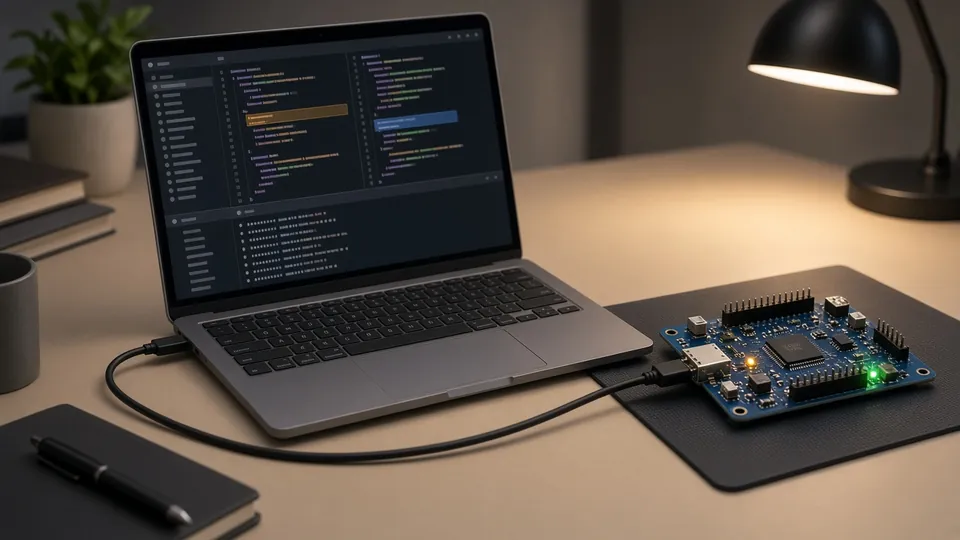
Arduino C is C/C++ adapted to microcontrollers. In robotics the idea is simple: your program runs in a loop on the board, reads sensors and drives actuators (LEDs, motors, buzzer). This is lesson 1 of our Arduino course; the code works on any UNO-compatible board, including the one in an Arduino robot kit.
In this lesson you will learn:
- the structure of a sketch (
setup() / loop());
- how to check that it compiles;
- how to use Serial to debug;
- a few good habits from day one.
On a Makeblock mBot (mCore board) programmed in Arduino C through mBlock, the logic is the same, with Makeblock’s libraries on top.
1. Sketch structure: setup() and loop()
Almost every Arduino sketch contains:
setup(): runs once at start-up;loop(): runs again and again.
board starts
  └── setup() (once)
        └── loop() (repeated forever)
void setup() {
  // runs once
}

void loop() {
  // runs forever
}
2. Verify and upload
- Verify / Compile finds errors without touching the robot.
- Upload sends the program to the board.
Make small changes, compile often and test step by step. The Arduino IDE is free for Windows, macOS and Linux.
3. Debugging with Serial
Serial prints messages to the computer (the Serial Monitor). It is the Arduino equivalent of Python’s print().
void setup() {
  Serial.begin(9600);
  Serial.println("Hello!");
}

void loop() {
  Serial.println("Running");
  delay(1000);
}
- Always call
Serial.begin(...) in setup(), and pick the same speed in the Serial Monitor.
- Don’t flood the port: add a
delay(...) or, later, use millis().
4. Good habits from the start
- Clear names:
counter, distance_cm, state.
- Use
const for constants: const int LED_PIN = 13;
- Avoid “magic numbers” (
9600, 13, 1000) scattered in the code: give them a named constant.
Exercises (12)
Solutions are hidden: click Show solution.
Easy
Exercise 1: Write an empty sketch that compiles: empty setup() and loop(). Easy
Show solution
void setup() {}
void loop() {}
Exercise 2: Start Serial at 9600 baud in setup(). Easy
Show solution
void setup() {
  Serial.begin(9600);
}
void loop() {}
Exercise 3: Print Hello once at start-up. Easy
Show solution
void setup() {
  Serial.begin(9600);
  Serial.println("Hello");
}
void loop() {}
Exercise 4: Print Running every 2 seconds in loop(). Easy
Show solution
void setup() {
  Serial.begin(9600);
}
void loop() {
  Serial.println("Running");
  delay(2000);
}
Exercise 5: Declare a constant const int BAUD = 9600; and use it. Intermediate
Show solution
const int BAUD = 9600;
void setup() {
Serial.begin(BAUD);
}
void loop() {}
Exercise 6: Create a global int counter = 0;, print it every second, then increment it. Intermediate
Show solution
int counter = 0;
void setup() {
Serial.begin(9600);
}
void loop() {
Serial.println(counter);
counter++;
delay(1000);
}
Exercise 7: Print counter= followed by the value on the same line. Intermediate
Show solution
int counter = 0;
void setup() { Serial.begin(9600); }
void loop() {
Serial.print(“counter=”);
Serial.println(counter);
counter++;
delay(1000);
}
Exercise 8: Count from 0 to 9 only, then print END and stop (deliberate infinite loop). Intermediate
Show solution
int counter = 0;
void setup() { Serial.begin(9600); }
void loop() {
if (counter <= 9) {
Serial.println(counter);
counter++;
delay(500);
} else {
Serial.println(“END”);
while (true) {
// stop
}
}
}
Advanced
Exercise 9: Print millis() (milliseconds since start-up) every second. Advanced
Show solution
void setup() {
  Serial.begin(9600);
}
void loop() {
  Serial.println(millis());
  delay(1000);
}
Exercise 10: Without delay, print READY once after 3 seconds using millis() (hint: store the start time). Advanced
Show solution
unsigned long t0 = 0;
bool shown = false;
void setup() {
Serial.begin(9600);
t0 = millis();
}
void loop() {
if (!shown && (millis() - t0 >= 3000)) {
Serial.println(“READY”);
shown = true;
}
}
Exercise 11: Write a function void logValue(const char* name, int v) that prints name=v. Advanced
Show solution
void logValue(const char* name, int v) {
  Serial.print(name);
  Serial.print('=');
  Serial.println(v);
}
void setup() {
Serial.begin(9600);
logValue(“score”, 42);
}
void loop() {}
Exercise 12: Explain Serial.print vs Serial.println in a comment, then use both. Advanced
Show solution
void setup() {
  Serial.begin(9600);
  // print: no line break
  // println: adds a line break at the end
  Serial.print("A");
  Serial.print("B");
  Serial.println("C"); // end of line here
}
void loop() {}
Next: Lesson 2: types, variables and constants → · Back to the course